HEIC to JPG
The HEIC to JPG Step That Quietly Changes Your Colors
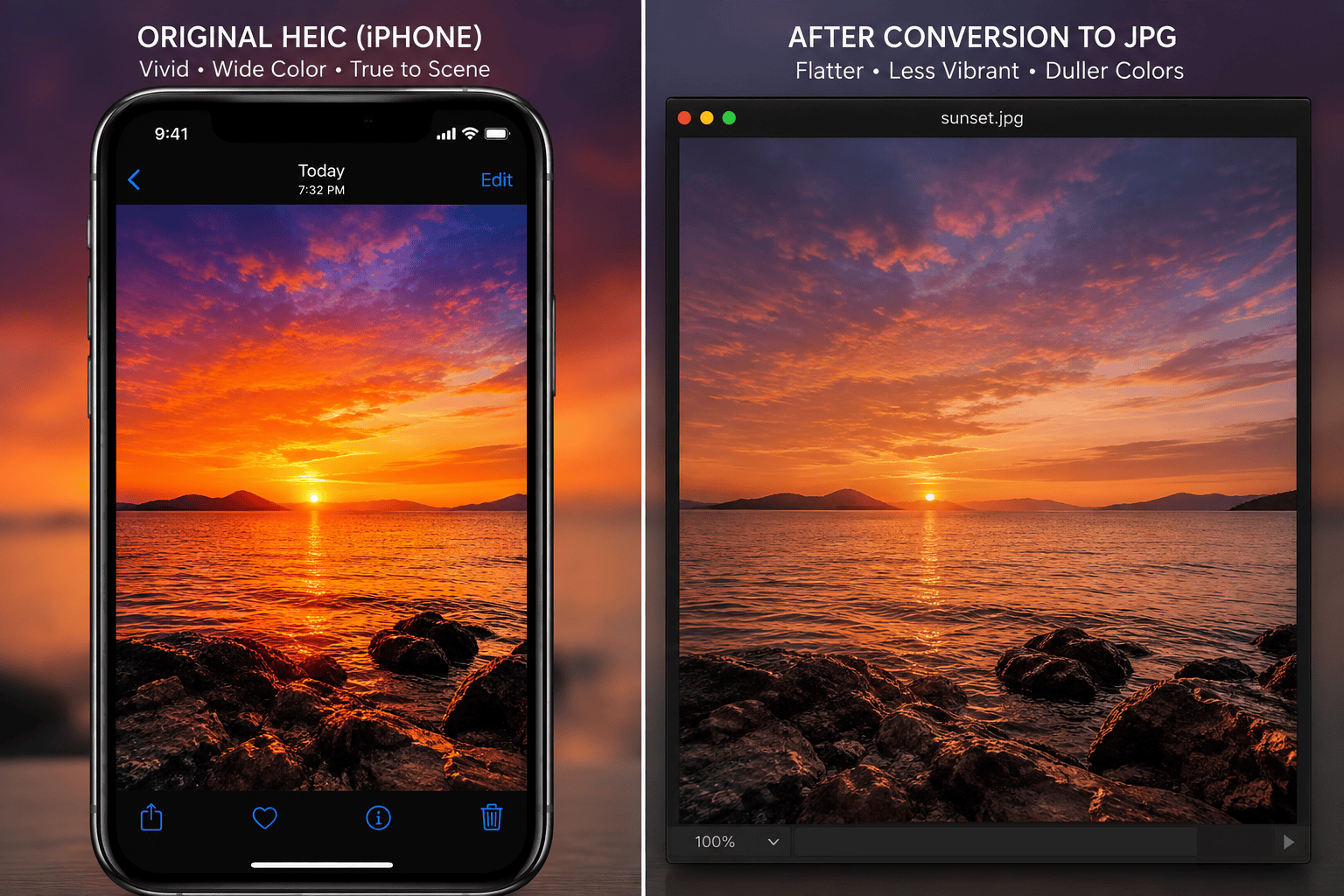
A photographer shoots a sunset over water on her iPhone. On the screen, the sky is genuinely striking: a deep, almost glowing gradient from orange into violet. She converts the photo from HEIC to JPG to upload it to her portfolio site, and the moment it loads, something is off. The gradient looks flatter. A little duller. Like the glow got turned down a notch. She hadn't touched the exposure, the crop, or anything else. She converted a file from one format to another — a step most people assume is invisible.
It wasn't invisible. And the cause has nothing to do with compression quality settings, which is where most explanations stop.
It's Not the Compression. It's the Color Space
Every image file doesn't just store pixel brightness values; it stores them against a color space, the defined range of colors those numbers are meant to represent. JPEG doesn't technically require any single color space. A JPEG file can carry an ICC profile pointing to a wider space, if a tool bothers to add one. But sRGB has been the practical, assumed default across the web for three decades, and most viewers, browsers, and conversion tools still treat a JPEG as sRGB unless it's explicitly tagged otherwise. That's what makes sRGB the space that matters in practice.
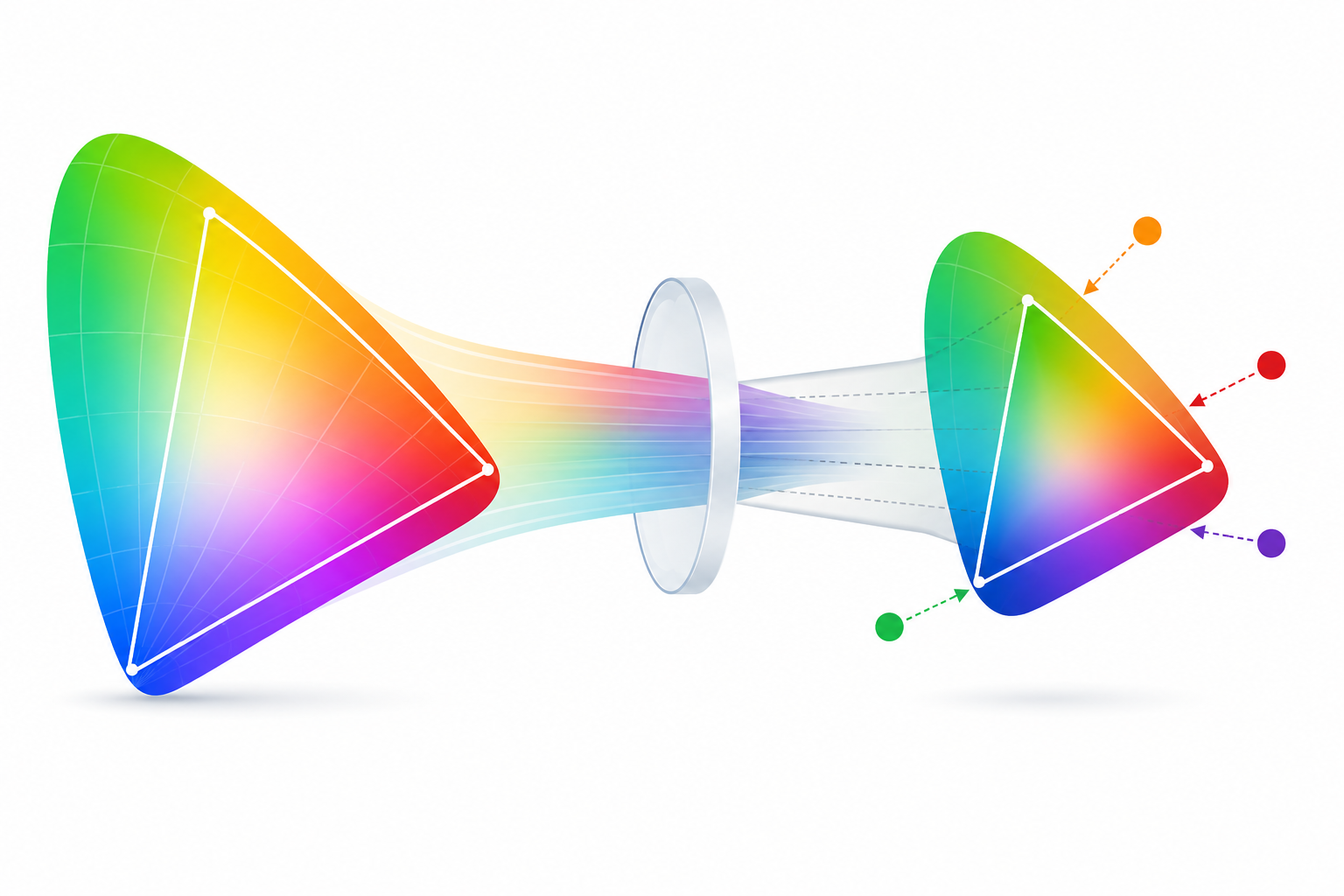
HEIC itself is a container format, not a color space. It doesn't lock a photo into any particular range of colors. But some HEIC photos from modern iPhones, especially ones with strong highlights or vivid skies, are captured using a wider color space such as Display P3, and HDR shots can carry an even wider color and brightness range on top of that. Where a HEIC photo does hold that wider data, it can represent colors sRGB simply has no numbers for: deeper reds, more vivid oranges, richer greens.
The problem isn't really "HEIC to JPG" as a category. A JPEG can technically carry a wide-gamut profile too. The specific, common issue is a wide-gamut HEIC getting converted into an sRGB-targeted JPEG, which is what most conversion tools do by default, since sRGB is still the safest bet for compatibility with older software and unmanaged viewers. When that downward conversion happens, the wider range of colors in the original has to be mapped into sRGB's narrower range somehow. Handled well, that's a deliberate remapping. There's more than one accepted way to do this, from perceptual mapping to relative colorimetric methods, and the goal is to preserve how the image looks as closely as the smaller space allows. Handled carelessly, a conversion tool may clip out-of-gamut colors to the nearest value it can represent, or remap them in some other crude way, and either one can produce that duller, flatter, occasionally oddly-saturated look.
This is a one-time event tied to the color space conversion itself. It's a different problem from the generation loss that happens when a JPG gets saved over and over; that's a separate, cumulative issue. This one can show up on the very first conversion, on a photo that's never been edited at all.
Where a Careless Conversion Shows Up
| Aspect | Original HEIC | Naive JPG conversion | Color-managed JPG conversion |
|---|---|---|---|
| Color range | Sometimes wide (e.g. Display P3), depending on the photo | Clipped or crudely remapped into sRGB | Deliberately remapped into sRGB, appearance preserved |
| Highlights and vivid skies | Full detail retained | Can look flat, blown out, or shifted | Close match to the original |
| Skin tones | Natural | Occasionally slightly off or waxy | Natural |
| Visual result | Matches what you saw on-screen | Noticeably duller or oddly saturated | Very close to the original |
The gap between the middle and right columns comes down to whether the conversion tool bothers to translate the color data instead of just discarding what doesn't fit.
When It Matters
A casual photo shared straight to a group chat or a social app rarely shows this problem in any way that matters. Most platforms recompress and reprocess images on their own servers anyway, which tends to mask small shifts from the original conversion.
It matters more in specific situations. A product photographer converting HEIC shots for an online store needs colors that match the actual item. A shift toward dull or oversaturated is the kind of thing that generates returns and confused reviews. Anyone delivering final images to a client is handing over a file the client will judge on exactly this kind of detail, even if they can't name what's wrong with it. And it's more visible in print than on a screen: a printed piece exposes color inaccuracies that a phone display's own vividness can otherwise hide.
For a quick personal photo, none of this is worth thinking about. For anything a business, a brand, or a paying client is going to look at closely, it's worth a second glance before you send the file along.
How to Tell Before You Send Anything
You don't need a calibrated monitor to catch the obvious cases. Open the original HEIC and the converted JPG side by side and look specifically at skies, water, and skin tones, the areas most likely to carry wide-gamut color. If the sky looks noticeably flatter, or skin looks slightly waxy or off, the conversion likely handled the color space carelessly, whether by clipping it or remapping it in some other crude way, rather than mapping it deliberately.
The fix isn't a manual color correction after the fact. That treats the symptom, not the cause. It's using a conversion tool that handles the color profile during the conversion instead of ignoring it. Heictools.io's HEIC to JPG converter keeps the embedded color profile intact through the conversion rather than flattening it blindly. That's the part that matters here, not the JPG quality slider most guides focus on instead.
FAQ
Does this happen with every HEIC photo?No. It's most noticeable on photos with strong highlights, vivid skies, sunsets, or anything shot with HDR processing active. A photo taken in flat, even lighting rarely shows a visible difference either way.
Is a color-managed JPG a larger file?Not meaningfully. The file size difference comes from the JPG quality setting, not from whether the color profile was handled correctly during conversion.
Can I fix a photo that's already been converted badly?Only partially, and only by eye. Once the wide-gamut data has been lost in a careless conversion, it's gone for good. It's easier to reconvert from the original HEIC with a tool that handles color properly than to try to correct the JPG afterward.
Does this affect HEIC to PNG conversions too?The same color-space mismatch can happen with any conversion target, but it shows up most often in JPG specifically, because most tools default to targeting sRGB when producing a JPEG even though the format itself doesn't strictly require it.
The conversion itself takes a second either way. Whether the color survives it depends entirely on whether the tool doing the work bothered to check.